
A staffing template is your fixed standard. The schedule, the staffing bar and Automatically fill use it in their calculations.
Creating a staffing template
- Go to Staffing templates and click New staffing template.
- Enter a Name. Want to use an existing one as a basis? Choose it under Copy staffing template.
- Do you work with even and odd weeks? Set Week cycle to 2.
- Do you have a telephony connection or a call data import? Under Data sources, choose the queues for each skill (see Forecast: required staffing from telephony data).
- Click Create. With data sources, Teamlead first fetches the call data. This can take a few minutes.
Filling in min and max
- Open the staffing template and choose the weekday.
- Fill in Min: and Max: and drag across the 15-minute cells of a skill.
- Click Save. You see Staffing saved successfully.
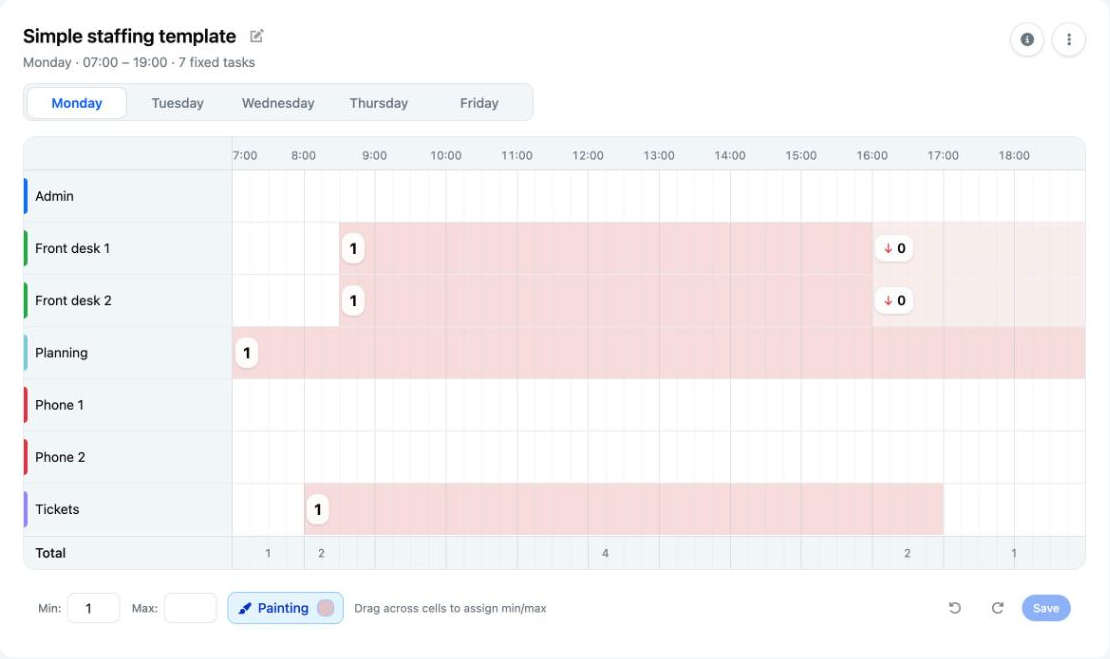
Making the staffing template apply
- Do you work with shift templates? Choose the staffing template in the Staffing template field of the shift template (see Creating and publishing a shift template).
- Does your location schedule continuously? Choose Staffing templates in the schedule's actions menu and fill in Applies from (see Continuous scheduling and publishing).
Without this step, there is no staffing in the schedule.
Good to know
- Only skills and skill groups with Available in staffing templates appear in the staffing template (see Skills and skill groups). If you switch that off, you clear the numbers entered for that skill.
- Want one standard for several skills, such as all phone lines? Use a skill group. In the total row, a skill group counts once.
- A maximum of 0 is possible, for example when a line is closed.
- Work that has to be done at some point in the day or week is set up as a flexible task (see Flexible tasks).
- Min and max are a guideline for Automatically fill, not a hard limit (see Automatically fill schedules differently from the staffing template).
- You make an exception for a single date on Staffing (see Viewing staffing and adjusting it per day), not here.
- Edit a staffing template on a computer. It is awkward on a phone.
Not working?
- Fetching the call data failed.: check whether the selected queues have call data. If it still does not work, email support@teamlead.io.
- No staffing in the schedule? Check whether the staffing template is linked to the shift template or to the period.