
With a leave request you ask your planner for time off. Your planner reviews the request and then puts the leave in the schedule.
How to do it
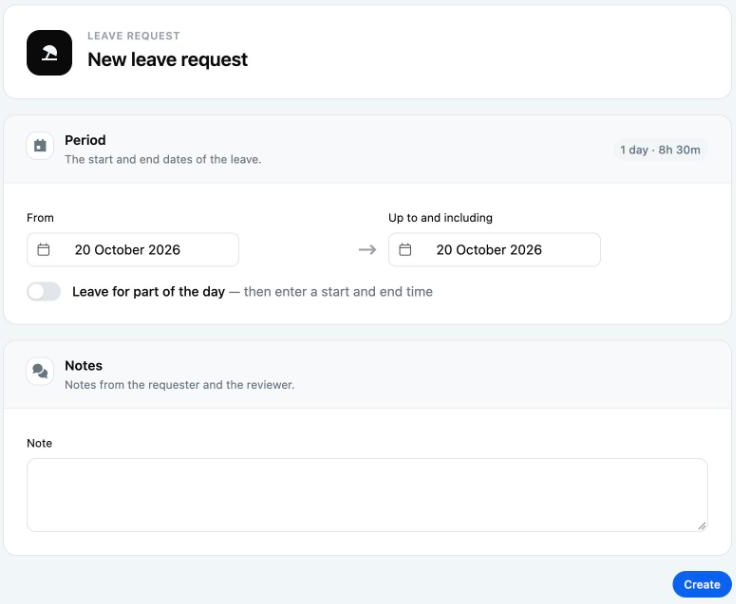
- On the Dashboard, click Request leave. Or go to Leave requests in the menu and click New leave request.
- Under From, choose the first day of your leave.
- Under Up to and including, choose the last day of your leave.
- Only need part of the day off? Turn on Leave for part of the day. Then choose a Start time and End time.
- Want to tell your planner something? Fill in the Note.
- Click Save. You see Saved successfully.
What happens next?
- Your request gets the status To be reviewed.
- You receive the email New leave request submitted as confirmation.
- The administrators of your location receive an email about your request.
- After the review, your planner puts the leave in the schedule. Until then, your shifts stay as they are.
Good to know
- To the right of Period you see how many days and hours you are requesting, for example 3 days · 24h. Teamlead calculates this using your fixed work times.
- You do not choose a leave type. Your planner does that.
- You choose times per quarter of an hour, within your location's opening hours.
- You cannot see your leave balance in Teamlead, not even if your organisation uses AFAS. Ask your planner or look in your organisation's HR system. Is Leave balances in your menu? That page is only for administrators.
- Cannot see the Request leave button? Then your organisation does not use leave requests in Teamlead. Ask your planner how to request leave.
- Made a mistake? As long as your request has not been reviewed yet, you can change or withdraw it (see Tracking, changing or withdrawing your leave request).
Not working?
- End date must be on or after the start date: check From and Up to and including.
- End time must be after start time: for leave on a single day, the end time must be after the start time.