
As an external employee, you work on call. You do not have a fixed place in the schedule. With Availability you show the planner when you can work.
How to do it
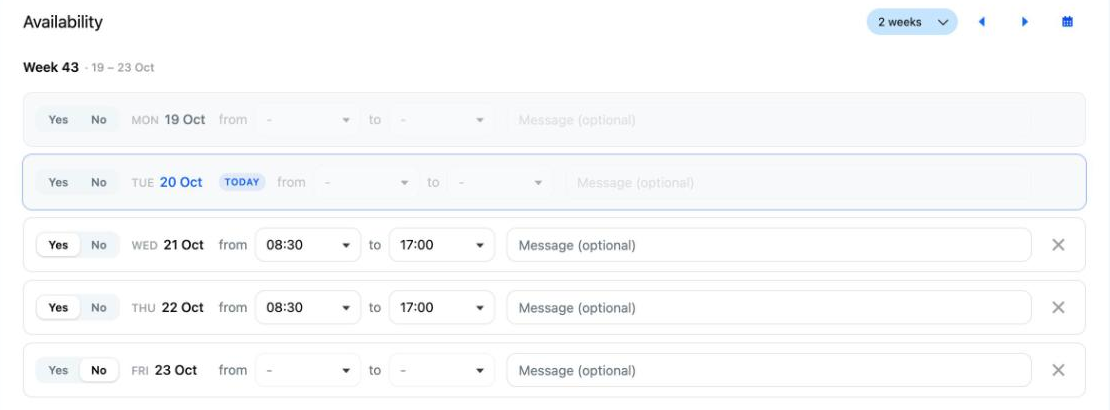
- Click Availability in the menu. You see your working days, for 2 weeks by default.
- Want to look further ahead? Choose 4 weeks or 8 weeks, or browse with the arrows.
- For each day, choose Yes (available) or No (not available).
- With Yes, your usual work times are already filled in. Change them under from and to if needed.
- Want to add an explanation? Fill in Message (optional).
- Click Save. You see Saved successfully.
Good to know
- Not sure yet about a day? Click the cross (Clear). The day is then set back to unknown.
- You choose times per quarter of an hour. The end time must be after the start time.
- Days further ahead may look grey. You can still fill them in: click the row.
- The planner sees your availability in the schedule and then schedules you. You are not scheduled automatically.
- Your planner does not get a notification when you submit your availability. Is it urgent? Then let them know yourself as well.
- The planner sees your explanation next to your name in the schedule.
- Cannot see Availability in the menu? Then you are not set up as an external employee, or your organisation does not use this. Ask your planner.