
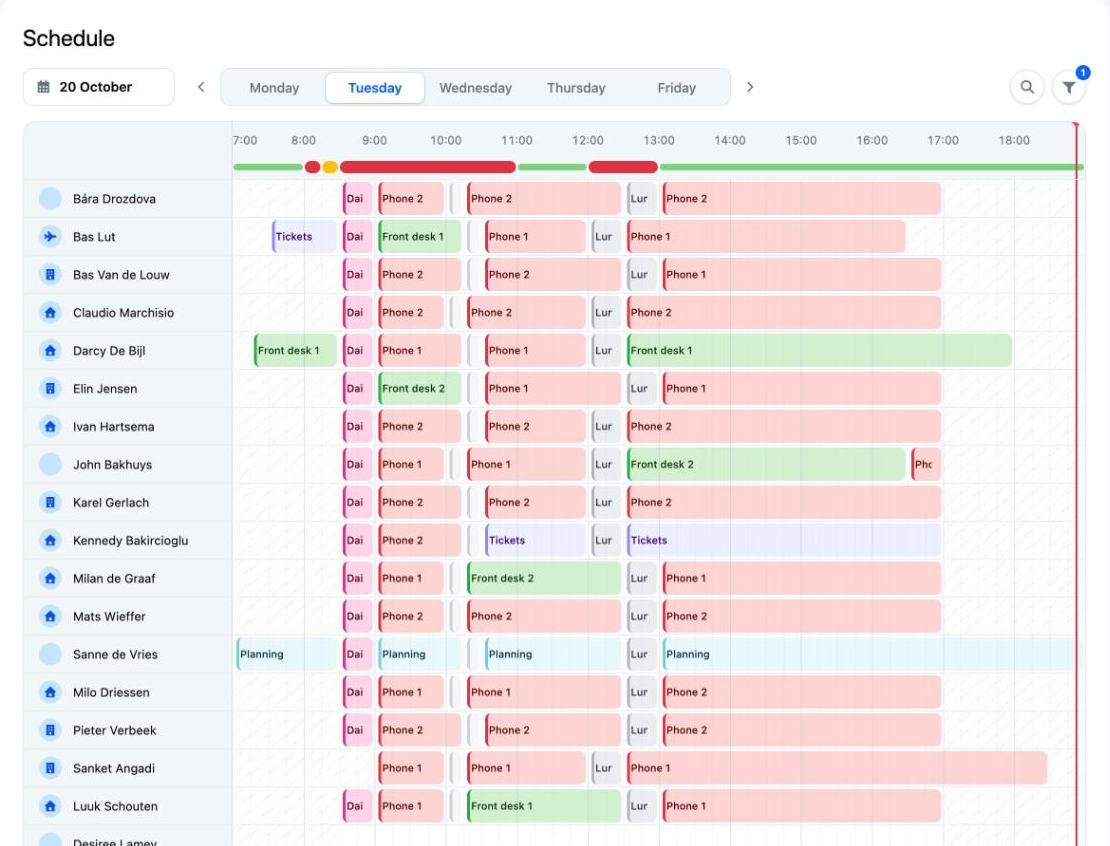
The Schedule shows your location's daily schedule. Each colleague has a row and each shift is a coloured block per skill. You can view the schedule, but not change it.
How to do it
- Click Schedule in the menu.
- Choose a day with the day buttons, or click the calendar and choose a date. Today takes you back to today.
- Find a colleague with the magnifying glass Search employees….
- Want to see only certain skills or colleagues? Click the filter button and choose under Skills, Employees or Work location. Clear filters shows everyone again.
What do you see in the schedule?
- The day notes and holidays for that day are shown above the schedule.
- An icon next to a name shows where someone works, for example at home or in the office.
- At the bottom is the Total row with the number of people scheduled per quarter of an hour.
- Above the rows is a coloured bar that shows whether enough people are scheduled. Click a quarter of an hour to see the number of people per skill. Red means too few, yellow too many.
Good to know
- The schedule shows one day at a time. You see your own week on the Dashboard (see Your dashboard).
- You can only go to days on which your location is open.
- You do not see days that your planner has not released yet. In that case it may say There is no active shift template for the selected date.
- Have you had the schedule open for a long time? Refresh the page to see the latest changes.
- On your phone the schedule is wide. Scroll sideways; the names stay in place.
- Want to swap or change a shift? Your planner does that (see Swapping or changing a shift).
Not working?
- You cannot see a colleague: maybe that colleague is not working that day. Adjust the filter and also turn on Off under Skills.
- You see another department: choose the right location in the location drop-down list at the top right.