
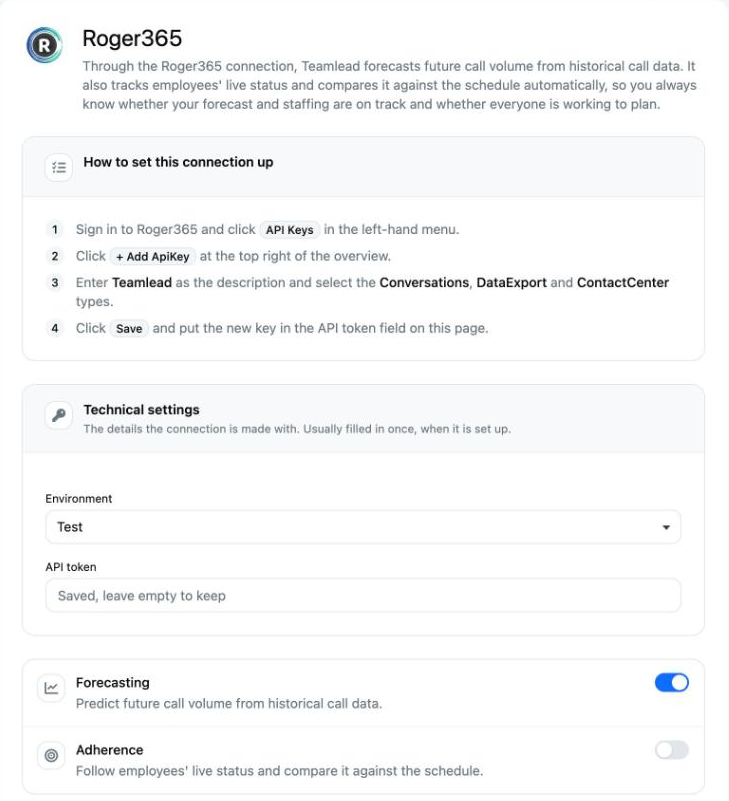
With the Roger365 connection, Teamlead fetches queues, call volumes and the status of employees. You first create an API key in Roger365 and then enter it in Teamlead. Teamlead helps you with this.
Step 1: create an API key in Roger365
- Log in to Roger365 and click API Keys in the menu on the left.
- Click + Add ApiKey at the top right of the overview.
- Under Description, enter Teamlead. Under ApiKey type, choose the types Conversations, DataExport and ContactCenter.
- Click Save. Copy the key straight away: Roger365 shows it in full only once.
Step 2: set up the connection in Teamlead
- Go to Settings > Connections and click Roger365.
- Under Technical settings, set Environment to Production, or to Test if you are connecting a Roger365 test environment.
- Paste the key into the API token field.
- Switch on Forecasting and/or Adherence.
- Click Create.
- Check the Queues, the Employees table and the Status mappings.
- Link the queues to skills in a staffing template.
Default status mappings
| Status in Roger365 | Status in Teamlead |
|---|---|
| Available | Available |
| Busy - InCcCall | On a call |
| Busy - ActiveWorkItem | After-call work |
| Away - Administratie, Away - Pauze, NotReady - InviteDeclined, NotReady - InviteTimedOut | Unavailable |
| OffWork | Logged off |
Good to know
- Teamlead regularly fetches the statuses from Roger365 itself. You do not need to set up anything else in Roger365.
- Employees are linked by email address. If the address is different, choose the employee under Profile.
- Is someone else entering the key? Then only share it through a secure channel, not by email or in a ticket.
Not working?
After saving, you see Saved, but the connection is not working yet with one of these messages:
- Roger365 did not accept the credentials. Check them and save again. Check the key and the selected Environment.
- Roger365 accepted the credentials but did not allow the request. Ask your Roger365 administrator to grant access. Check that the key has all three types.
- Roger365 could not be reached. Try saving again later.