
With leave balances, you track how many leave hours each employee has left. Without AFAS, you use the Leave balance module in Teamlead. With AFAS, leave types and balances come from AFAS.
Three terms
- Leave skill: a skill of the Leave type, for example Leave or Special leave. You see it in the schedule. When processing a request, you choose which leave skill goes into the schedule.
- Leave balance type: a kind of balance in the Leave balance module, for example statutory or extra-statutory leave.
- AFAS leave type: a leave type from AFAS. Only with an AFAS connection.
Setting up leave balances without AFAS
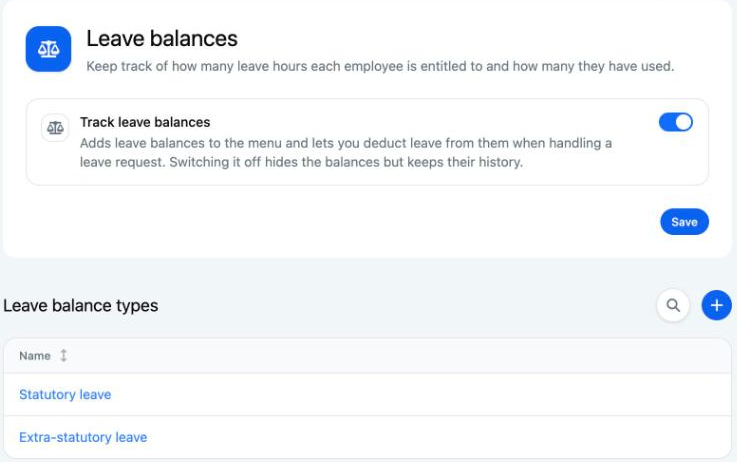
- Go to Settings > Connections and open Leave balance.
- Turn on Track leave balances and click Save.
- Under Leave balance types, click New leave balance type. Fill in Name, Colour and Order and click Create.
- Open the type. Under Rules, click New rule. Enter a Name, for example Full-time 36 hours, and the number of Hours per year. Click Create.
- Open the rule. Under Employee links, click New employee link. Choose the Employee, fill in From and optionally to, and click Create.
After that, Leave balances appears in the menu. You see the balance on the employee's profile.
How Teamlead calculates
- Accrual is pro rata. If an employee link starts halfway through the year, the employee accrues about half of the hours per year.
- When processing a leave request, you deduct the hours in the Adjust leave balance step. Teamlead suggests the hours based on the schedule. If you delete the request, the hours come back.
- Does a day of leave count half an hour too much? Then make the break skill unpaid.
- You make a correction under Leave balances: click the name and then New adjustment. Under Action, choose Increase balance, Decrease balance or Set balance.
With an AFAS connection
- The leave types come from AFAS and are listed in the AFAS leave types table. For each type, choose a Visibility: Automatic, Show or Hide. An employee cannot choose a hidden leave type when requesting leave.
- The balance comes directly from AFAS. The profile then shows the AFAS balance.
- Does the balance show odd numbers, such as 1.5 instead of 96? Then check the Leave balance unit on the AFAS connection.
Good to know
- The leave balance settings apply to your whole organisation. Any administrator can change them.
- If you delete a leave balance type, all rules, employee links and adjustments of that type also disappear.
- If you turn off Track leave balances, the balances disappear from view. The history is kept.
- Does the Leave balance card show Not available? Then the module is not part of your subscription. Email support@teamlead.io.