
The profile determines what automatic scheduling may do with an employee. You can also schedule manually outside the profile.
How to do it
- Go to Employees and click the name.
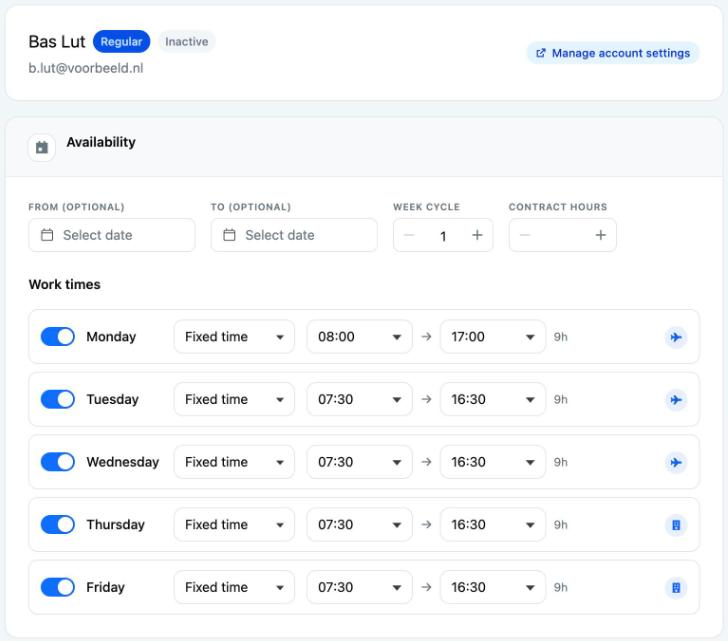
- Fill in the Availability block:
- From (optional) and To (optional): the period in which the employee may be scheduled. Empty means unlimited.
- Week cycle: the number of weeks in the fixed pattern. With 2 or more weeks, the buttons Week 1, Week 2 and so on appear.
- Contract hours: the maximum number of hours per week for automatic scheduling.
- In the Work times table, set per day:
- whether the employee works (when turned off, the day is Off);
- Fixed time with a start and end time, or Shift if your location works with shifts;
- the work location: click the circle to switch, for example between office and home.
- Assign skills in the Skills block. In the Available list, click the plus next to a skill. The skill then moves to Assigned.
- Click Save. You see Updated successfully.
Good to know
- Someone who works at two locations has two profiles. Each profile has its own work times and skills.
- Work times are the window in which someone may work, for example 8.30 to 17.00. They are not net hours.
- Unpaid breaks do not count towards the contract hours. Leave and sick hours do count.
- The skills list only contains skills of the Regular type. You do not assign break, leave and illness here.
- If you increase the week cycle, the new week gets a copy of the previous week.
- You do not change the name, email address and type here. Click Manage account settings for that.
- Is someone leaving? Enter their last working day in To (optional). After that, the employee disappears from the schedule and the drop-down lists. The history is kept.
- You see former employees again under Employees if you turn off Show employable employees only.
- Do you track leave balances or use AFAS? Then you see the leave balance on the right of the profile.
- With Set order on the Employees page, you set the order in the schedule. Click Pin and drag. The rest are listed alphabetically.
Not working?
- No skills have been configured for this location yet: create skills first.
- No Shift option? Your location does not work with shifts. Teamlead can turn this on.
- Is a new employee not in the schedule? Check From (optional) and read A new employee is not in the schedule.